Use your Crew Link — clock in, clock out & upload receipts
A step-by-step guide for crew members: open your personal link, track your work time, and send receipt photos without an app or account.
Your Crew Link is your personal web page for tracking work time and sending receipts to the contractor. Open it in Safari or Chrome on your phone — no app download or login is needed.
Compare the RenoJira app and Crew Link
Open your personal link
- 1Open the Crew Link sent to you by SMS, WhatsApp, or another message.
- 2Check that the greeting shows your name. If it does not, stop and ask the sender for your own link.
- 3Keep the message or bookmark the link so you can return to the same page each day.
- 4Use the language switcher if you prefer another available language.
Clock in when you arrive
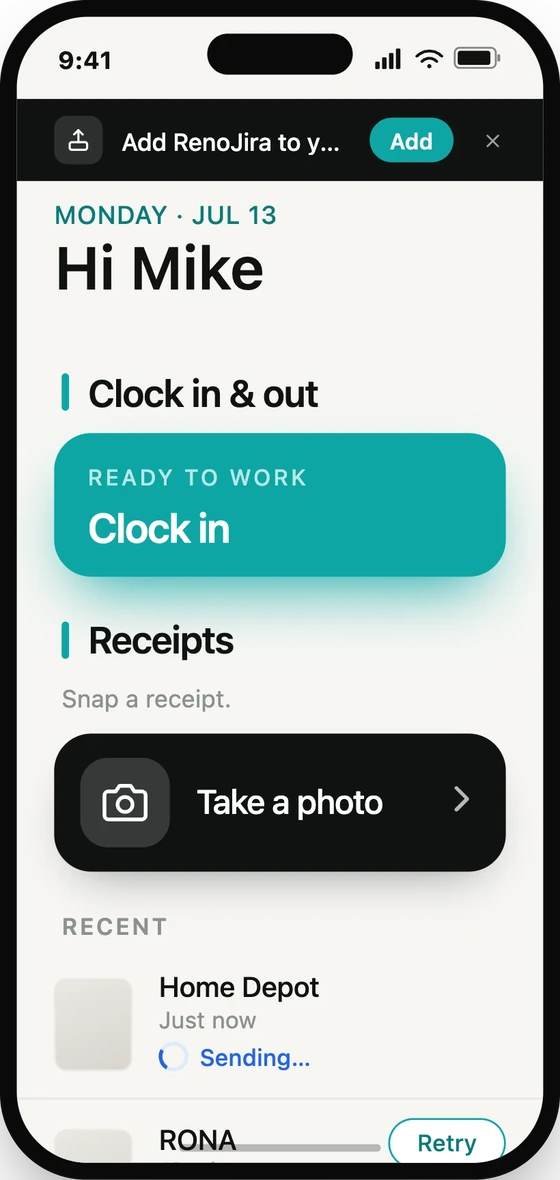
- 1At the job site, open your Crew Link and find Clock in & out.
- 2Tap Clock in and confirm when prompted.
- 3Allow location access when your phone asks. RenoJira uses your location to match the entry to the job site.
- 4Wait for the page to show On the clock and your start time. Check the displayed job site, if one is matched.
Clock out when you finish
- 1Open the same Crew Link when you finish your shift.
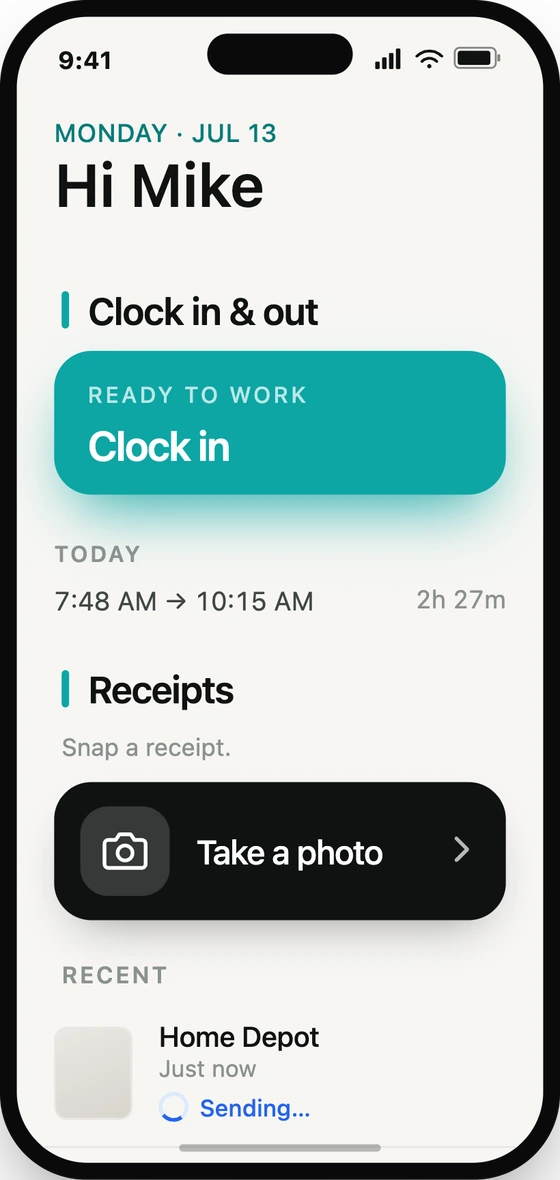
- 2Tap Clock out and confirm.
- 3Check that the page returns to Ready to work and your completed session appears under Today.
- 4If you forgot to clock out or a time is wrong, tell the contractor the correct start and finish times so they can correct attendance.
Upload a receipt
- 1On your Crew Link, scroll to Receipts and tap Upload a receipt.
- 2Take a clear photo or choose one from your photo library. Include the full receipt, store name, date, items, and total.
- 3On Review, check the photo. Use Retake or Crop if needed.
- 4Answer Did you pay this bill? Choose Yes, I paid if you paid it yourself, or No if you did not. This helps the contractor know whether reimbursement is needed.
- 5Add an optional note, such as what you bought or which job it was for, then tap Send.
- 6Check the receipt under Recent. Wait for Uploaded, or follow any pending or failed status shown on the page.
If the connection is weak
- Check the status after every clock action or upload. A pending item is not yet confirmed by the server.
- If an item is saved for later, return to the same browser and Crew Link with an internet connection so it can sync.
- If a receipt shows Failed, tap Retry instead of uploading another copy.
- If the page cannot save or send an item, keep the photo and tell the contractor. Do not assume it has been received.
Keep the link handy
You can bookmark your Crew Link or use the page’s home-screen installation instructions to open it like an app. Continue using your own link on the same device to check pending items.
Frequently asked questions
Do I need to download RenoJira or create an account?
No. Open the personal Crew Link sent by your contractor in your phone’s browser. You can use that same link to clock in and out and upload receipts.
Can I share my Crew Link with another worker?
No. Your link identifies you. Each person should use their own link so attendance and receipts are recorded against the right person.
Does Uploaded mean I have been reimbursed?
No. Uploaded means the receipt was sent. Approved is a separate review status; it does not by itself confirm that you have been paid. Ask the contractor about reimbursement.
What if my link is not working?
Ask the person who sent it for a current Crew Link. You do not need to create a RenoJira account to use a Crew Link.