Customize permissions per feature
Fine-tune what someone can see and manage on a project with Custom access.
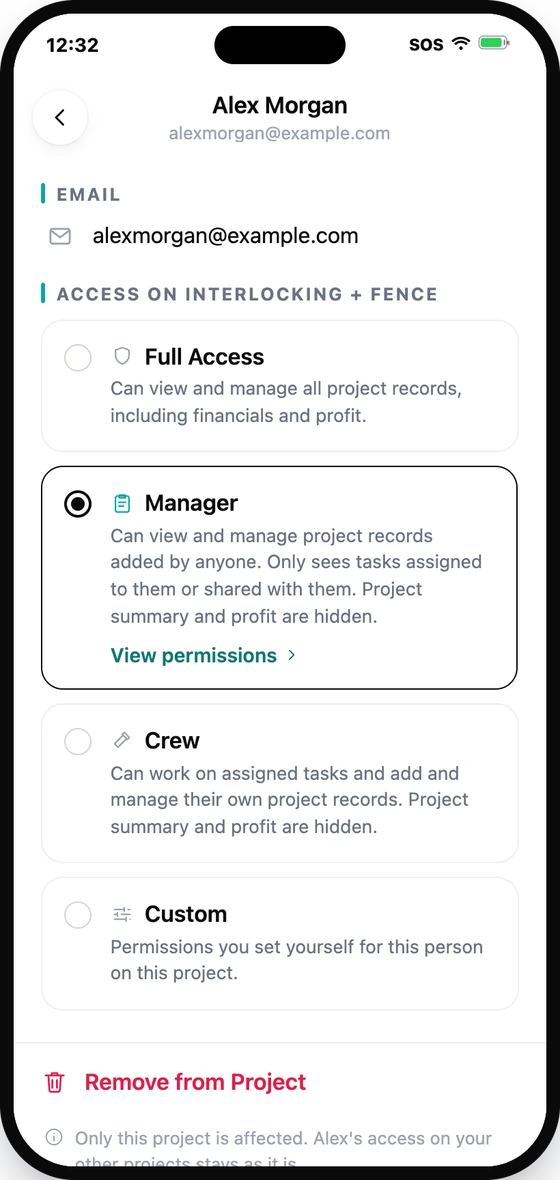
Full Access, Manager, and Crew come with predefined project permissions.
When those presets don't fit someone's responsibilities, choose Custom to set their project permissions individually.
Custom is a Project Access option — it controls what someone can see and manage inside a project. It's separate from Team Access (Clock In / Out, Manage Team, Crew Pay).
1. Choose Custom
On the Project Access screen, select Custom for the team member.
2. Set access for each feature
Choose the appropriate access level for project features such as:
- Expenses
- Payments
- Change Orders
- Tasks
- Photos
- Files
Depending on the feature, you can choose from:
| Access Level | What it means |
|---|---|
| No Access | Cannot access the feature. |
| Add & Manage Own | Can add new records and manage records they created. |
| Manage Team Records | Can manage their own records and records created by other team members, excluding records created by the Owner or Full Access members. |
| View All | Can view all records but cannot manage records created by others. |
| Manage All | Can view and manage everyone's records, including records created by the Owner and Full Access members. |
Not every feature uses every access level — you'll only see the options that are actually available for that feature.
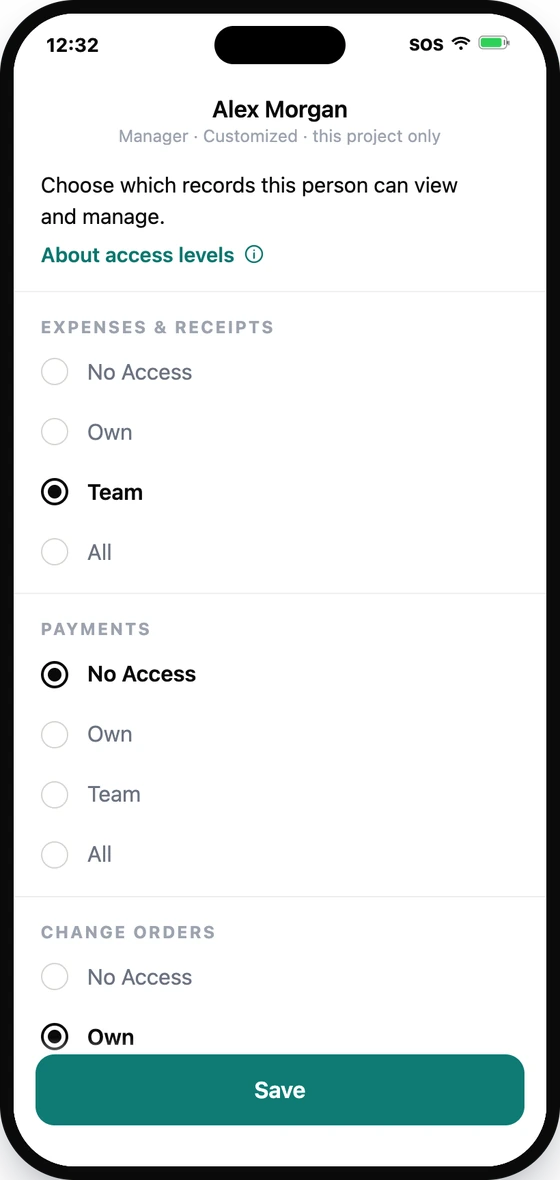
3. Set project actions and visibility
Custom access also controls project-level permissions. These are on/off — not record access levels:
- Edit Project Details
- View Profit
- Activity
- Mark as Completed
- Send to QuickBooks
4. Save
Save the changes. The member's access to this project will now follow the Custom permissions you selected.
Example
You could let someone:
- Manage team records for Tasks and Photos
- View all Expenses
- Add & manage only their own Payments
- Hide Profit
This gives them the access they need without giving them Full Access.